
Why a steady flow of reviews matters
Reviews are what people read before they choose a plumber, a dentist or somewhere to eat. Google's help page on local ranking also says more reviews and positive ratings can help your local ranking.
Steady matters more than sudden. A reader trusts a business with a few new reviews every month more than one with a burst of twenty last spring and nothing since. So the goal isn't a one-off campaign. It's a simple habit of asking every customer, every time, that keeps running in the background.
Get your review link and QR code
Google gives every Business Profile its own review link and QR code. Use them: they take a customer straight to the place to leave a review, instead of making them search for you and hunt for the right button. Google's help article, Create a Google link or QR code to request reviews, has the current steps. At the time of writing they are:
- Sign in and open your Business Profile.
- Choose Read reviews, then Get more reviews.
- Copy the link, or save the QR code image.
Google notes that the QR code can currently only be created from a computer browser, not on a phone. Also worth knowing: customers need to be signed in to a Google account to leave a review, according to Google's tips to get more reviews, so a direct link removes as much of the other friction as possible.
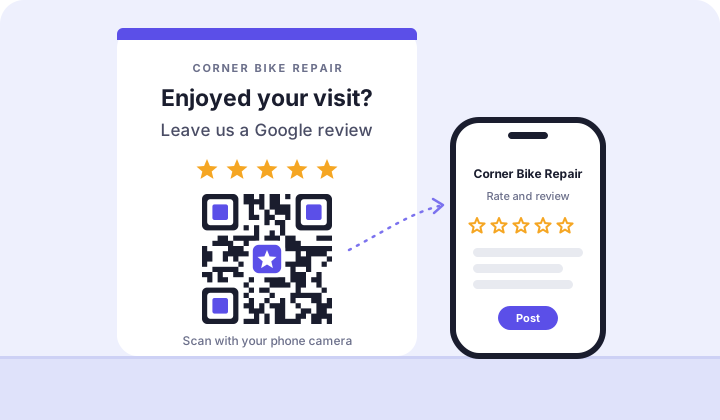
Then put the link or code wherever customers already look:
- Receipts, invoices and booking confirmations
- Thank-you emails and your email signature
- A small printed card at the counter, or a sticker by the door
- The end of a chat or support conversation
- Your website's contact page
Ask at the right moment
The best time to ask is right after the customer gets what they came for, while the experience is fresh. What that looks like depends on your business:
- Restaurant or café: when you bring the bill, or as they pay.
- Trades: once the job is done and you've walked the customer through it.
- Salon or barber: at checkout, once they've seen the finished result.
- Shop: at the till, with a card in the bag.
- Clinic or practice: at checkout, in general terms. Never refer to the treatment or visit details.
One important point: “the right moment” is about timing, not about choosing who to ask. Ask every customer, including the quiet one and the one who had to wait. Picking only the people who seem happy is called review gating, and Google prohibits it (more on that below).
What to say: three examples
Keep it short, make it personal, and ask for an honest review. Don't suggest what they should write or what rating to give. Google's policy allows asking for reviews, but not trying to influence the rating or what the review says. These examples are for a fictional bike shop. Change the words until they sound like you.
In person, at the counter
Said to every customer as they pay or pick up, with a small card that has your QR code on it.
Thank-you email
Sent a day after the visit or job, from a real person, with the review link as the only button.
Text message
Only for customers who gave you their number and agreed to hear from you.
Make it a team habit
If you're the only one asking, it happens on your good days. If it's part of how your team finishes every visit, it happens every day.
- Build it into the routine. Checkout, handover, end of the appointment: pick one moment and make the ask part of it, with the card or QR code right there.
- Give people words they're comfortable saying. Let staff adapt the script so it doesn't sound recited.
- Share the good ones. When a review mentions someone by name, pass it on to the team. It's the best motivation there is.
- No quotas, no requests for names. Google's policy specifically says businesses shouldn't ask staff to collect a certain number of reviews, or reviews that mention a particular staff member. Celebrate mentions when they happen; don't ask for them.
Follow up by email or text, respectfully
Some customers mean to leave a review and simply forget. A short follow-up catches them. Done badly, it feels like spam, so:
- Send it within a day or two, while they still remember the visit.
- Send it from a real person, with a name and a reply-to address that works.
- Make the review link the only thing you're asking for.
- Ask once. One gentle reminder at most, then leave it.
- Only email or text people who gave you their details and agreed to hear from you. Rules on commercial email and texts vary by country, so check what applies where you are, and always honor opt-outs.
- Don't put a “How did we do?” screen in front of the Google link that only sends happy customers on to Google. That's review gating too. If you want private feedback as well, ask for it separately, and send everyone the same review link.
What Google doesn't allow
Google's prohibited and restricted content policy is strict about reviews, and the shortcuts below are exactly what it's written to stop. Avoid all of them:
- Incentives of any kind. No discounts, free items, payment or other rewards in exchange for a review, even if you'd reward any review, good or bad. The same goes for offering something to get a negative review changed or removed.
- Review gating. The policy says businesses must not discourage or prohibit negative reviews, or selectively ask for positive ones. Ask everyone, the same way.
- Fake reviews and conflicts of interest. No reviews from you, your family, current or former employees, friends posing as customers, or anyone who wasn't a real customer. And never post reviews on a competitor's profile to drag them down.
- Buying reviews. Reviews or ratings paid for, directly or in kind, are prohibited, no matter who sells them or how “real” they claim the reviewers are.
- Review stations. Don't hand customers a shop tablet or phone to review you on the spot, and don't have staff post reviews on customers' behalf. The policy says businesses shouldn't require or pressure people to leave reviews while they're on the premises. Google's own explanation of how reviews on Google Maps work also says its systems watch for uncharacteristic activity, like a lot of reviews in a short time. Let customers use their own phone, in their own time. That's what the QR code is for.
The cost of getting this wrong is real. Besides removing the reviews, Google can restrict a Business Profile for fake engagement: stopping new reviews for a period, hiding existing ones, or showing a warning to customers that fake reviews were removed. One shortcut can undo years of honest reviews.
Reply to every review
Asking gets reviews started. Replying keeps them coming. When people see that you read and answer reviews, it's clear their words reach a real person, and responding to reviews is one of the steps Google recommends in its local ranking tips.
A good reply to a positive review is short and specific:
★★★★★“Rosa fixed my gears in twenty minutes and showed me how to adjust them myself. Great shop.”
Thank them, mention something they mentioned, and sign it. Avoid pasting the same “Thanks for your review!” under every one. If you're stuck for words, the free Google review reply generator will draft one for you to edit.
When the new review is a bad one
Ask every customer and, sooner or later, someone will leave a review that stings. That's normal, and it's part of why your good reviews are believable. Don't respond by hurrying to collect a batch of positive reviews to bury it. Keep asking the way you always do, and answer the review itself calmly and specifically.
Our guide on how to respond to negative Google reviews has a step-by-step approach and eight example replies. If a review breaks Google's rules, such as one from someone who was never a customer, you can report it; the guide explains when that's worth doing.
Reviews are also one part of a bigger picture. For hours, photos, categories and the rest of your profile, see how to grow your Google presence.
How ReplyChamp helps
ReplyChamp doesn't ask your customers for reviews. That part is yours, and Google's free link and QR code handle it well. Where ReplyChamp helps is what comes next. It connects to your Google Business Profile, checks for new reviews about every 30 minutes, and puts each one in your inbox with a draft reply written the way you write. You can approve or edit every draft, or choose “Don't reply” to skip one, so replying to every review becomes a few minutes a day instead of a chore that piles up.
Sensitive reviews always wait for your approval, and 1–2★ reviews do too unless you choose to automate every rating, so a reply to an unhappy customer goes out only the way you decided. Auto-reply stays off until you turn it on, and only after you've approved 10 drafts. It's built for owners managing their own business, not agencies.
Try it free for 7 days
No credit card. Then $15 per location per month, or $150 per year.
Start your free trial